
Command-line quick start
Install and check
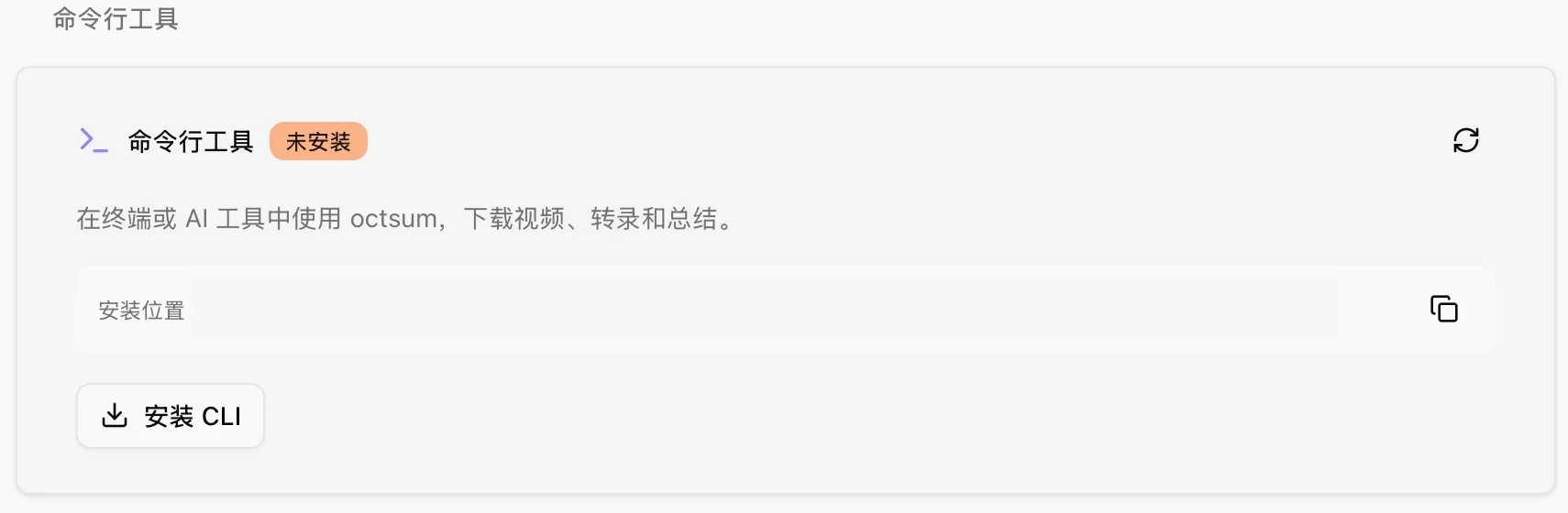
Open Settings → 命令行工具 (Command-line tool) and click 安装 CLI (Install CLI). Reopen your terminal after installation. On Windows, restart terminal and AI applications so they inherit the updated environment. The CLI is bundled with the desktop app and requires no separate Node.js installation.
octsum --version
octsum --help
octsum doctor --json
Use --help for the installed version's commands. doctor checks resources such as the downloader, FFmpeg and models. If octsum cannot be found, reopen the terminal and use 重新检测 (Check again) in settings. Reinstall the CLI after moving the app.
Once installed, octsum can run with the desktop app closed. Complete any required activation or platform sign-in in the app first.
Select a workspace
The CLI shares workspaces, settings, models and results with the desktop app. List existing workspaces to obtain their actual paths:
octsum workspace list --jsonThe following example creates OctSum-demo in your current directory and uses a source called lesson.mp4. Replace these examples with your own locations and filenames. Quote paths containing spaces.
octsum workspace create "./OctSum-demo"
cd "./OctSum-demo"
octsum workspace info
Commands inside a workspace or its subdirectories find the workspace by walking upward. Elsewhere, add --workspace "actual workspace path". If no workspace is found above the current directory, the CLI selects the registered workspace with the latest update time. Set --workspace in scripts to keep the target predictable.
Process local media
Importing external media preserves the source and copies it into the workspace's 导入 folder. Files already inside the workspace are registered without another copy. Install the transcription model and matching alignment models in the app before local transcription.
octsum import "../lesson.mp4"
octsum file list
octsum file info "导入/lesson.mp4" --json
octsum transcribe "导入/lesson.mp4"
octsum transcript show "导入/lesson.mp4" --limit 20 --json
Add --remote explicitly for online transcription. Summary generation uses the app's saved provider and summary settings; activate the app and configure the relevant service first.
octsum transcribe "导入/lesson.mp4" --remote
octsum summarize "导入/lesson.mp4"
octsum summary show "导入/lesson.mp4"
Existing transcripts can be summarized directly. Add --auto-transcribe to transcribe first when a transcript is missing. This uses local transcription unless you also add --remote:
octsum summarize "导入/lesson.mp4" --auto-transcribe --remoteCorrect and translate subtitles
Run these commands after transcription. Correction updates the saved subtitles directly. Translation uses the local or online mode selected in the app. After translation, use the same target language to read or export that track.
octsum correct "导入/lesson.mp4"
octsum translate "导入/lesson.mp4" --target-language en
octsum transcript show "导入/lesson.mp4" --target-language en --limit 20 --json
octsum transcript export "导入/lesson.mp4" --target-language en --format srt --output "lesson-en.srt"
Search a workspace
Run these examples from inside OctSum-demo. Change --workspace "." to the workspace path if you are in another directory. Text search matches existing subtitles. To search video frames, install the embedding model in the app and build the frame index first.
octsum search "project launch" --type text --workspace "." --limit 10 --json
octsum index "导入/lesson.mp4" --workspace "."
octsum search "a flowchart on a whiteboard" --type shots --workspace "." --limit 10 --json
Workspace frame results include the media path and frame timestamp. Add --file "导入/lesson.mp4" to search only that video's indexed shots. Workspace-wide frame search requires a CLI whose octsum --help lists that behavior. See the command reference for search options.
Submit a video URL
submit chains downloading, transcription and summarization for supported links from Bilibili, YouTube, Douyin, Xiaohongshu, Kuaishou and Xiaoyuzhou. Run --dry-run to check the request before you start a download.
octsum submit "https://www.bilibili.com/video/BV13eH46nEuC/" --action download --dry-run --json
octsum submit "https://www.bilibili.com/video/BV13eH46nEuC/" --action download --wait --json
This summary example selects online transcription and explicitly authorizes possible online charges:
octsum submit "https://www.bilibili.com/video/BV13eH46nEuC/" --action summarize --transcription remote --allow-paid --wait --timeout 1800 --json--transcription local selects local transcription; auto follows client settings. Summaries and later online steps may still incur charges with local transcription. --allow-paid authorizes online processing; it is not a fixed price or spending limit. Sign in to platforms through app download settings. For YouTube, see the browser extension tutorial.
Inspect tasks and export
Local processing commands wait by default; --no-wait returns a task ID while work continues. submit returns immediately unless --wait is supplied. Replace 123 with the real task ID:
octsum task list --json
octsum task info 123 --json
octsum task wait 123 --timeout 1800 --json
octsum task result 123 --json
octsum open --task 123octsum transcript export "导入/lesson.mp4" --format srt --output "lesson.srt"
octsum summary export "导入/lesson.mp4" --format md --output "lesson-summary.md"Export creates a new file. Choose a different filename if the destination already exists. open --task opens the task’s saved media in the installed desktop app.
Ctrl+C stops waiting; background work may continue. Use octsum task cancel 123 to stop processing. See the command reference for all commands and options.