
Copy and export
Copy content
Open 复制 (Copy) in the video toolbar and choose the transcript or summary, then paste it into your notes or document.
Export transcripts and summaries
- Open 导出 (Export) and choose 导出文稿 (Export transcript) or 导出总结 (Export summary).
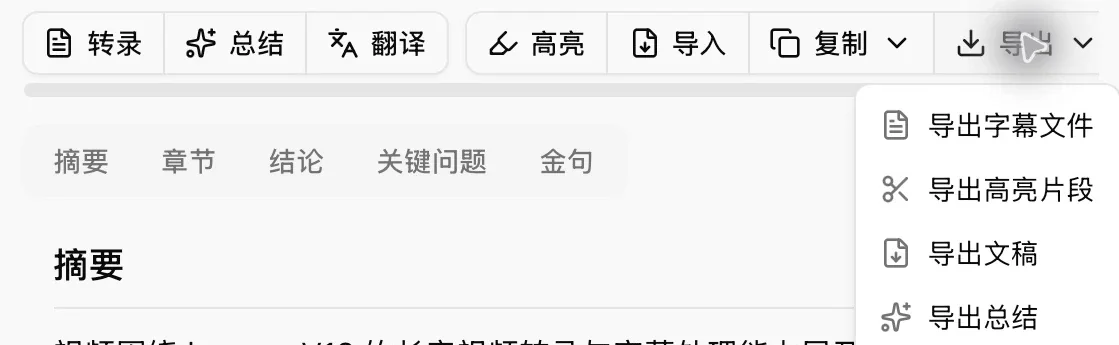
- Enter a filename and click Choose to set an output folder.
- Choose MD, TEXT, HTML or PDF. Summary export also lets you select which sections to include.
- Click Export, then inspect the file in your chosen folder.
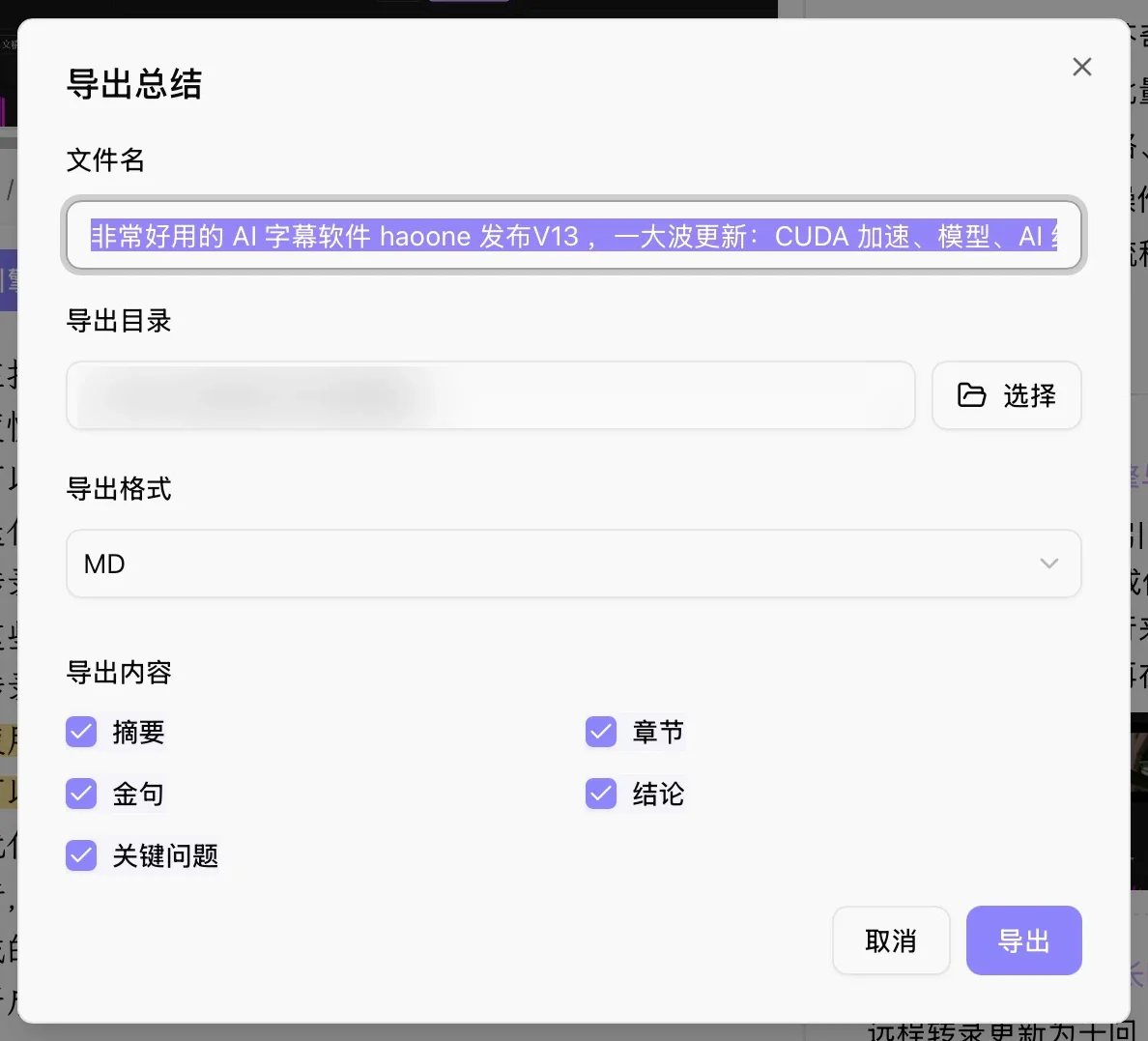
MD is suitable for editing, TEXT for plain text, HTML for browser reading and PDF for saving or sharing. Generate a summary before exporting one, and finish transcription before exporting a transcript.
Export subtitles or highlighted clips
Use Export subtitles for subtitle delivery, selecting format and destination in its dialog. Use Export highlighted clips for marked content and check the selected ranges first. These outputs differ from the source video; open them and check content and timing before sharing.