
Generate and read summaries
Generate a summary
- Finish transcription, then click 总结 (Summary) in the video toolbar.
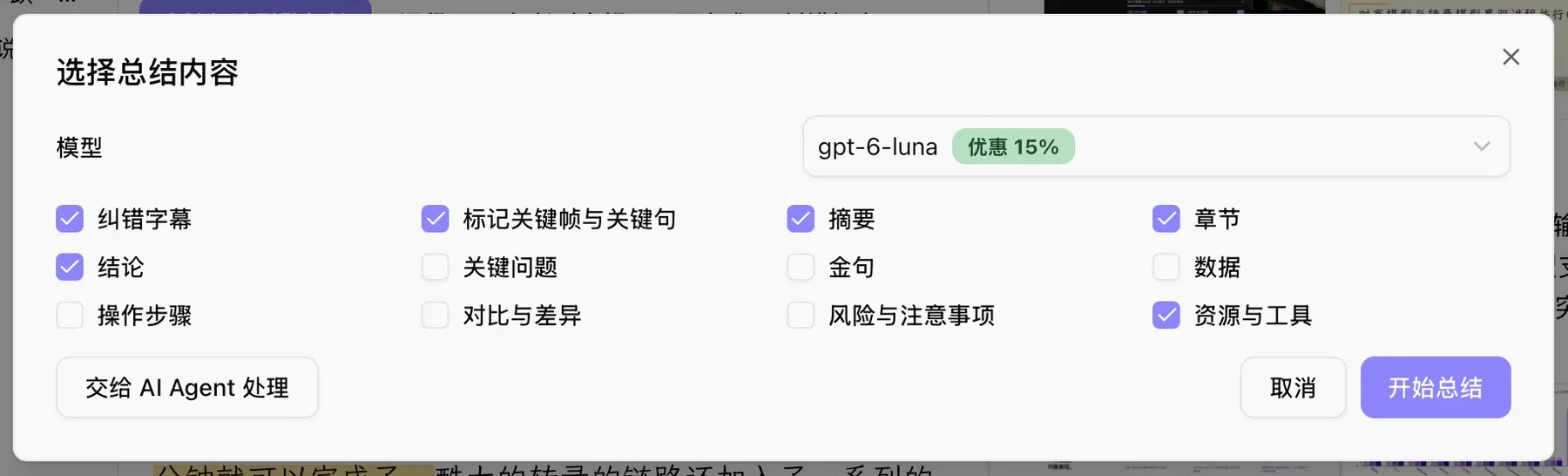
- Select the desired summary sections and confirm the settings offered by the dialog.
- Wait for Video summary in Task queue. An automatic workflow may then continue with keyframe and key sentence marking.
Read and review the video
Open the completed video and use 摘要 (Overview), 章节 (Chapters), 结论 (Conclusions), 关键问题 (Key questions) and 金句 (Quotes). Available sections depend on your selection and the content.
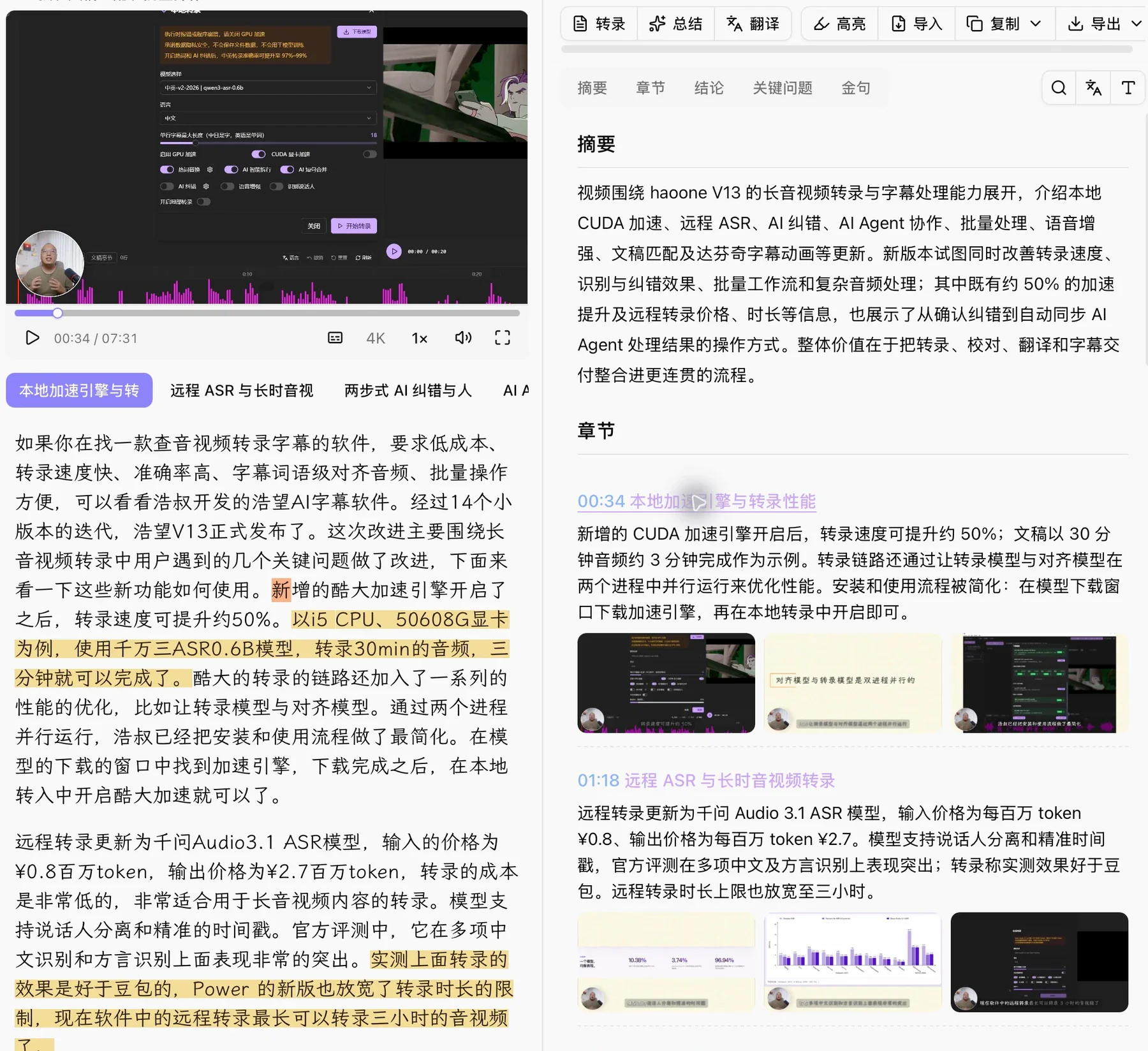
Click a chapter timestamp to seek to its source. In this demo, 00:34 本地加速引擎与转录性能 points to the local acceleration discussion near 34 seconds. Click chapter keyframes to review their source positions as well.
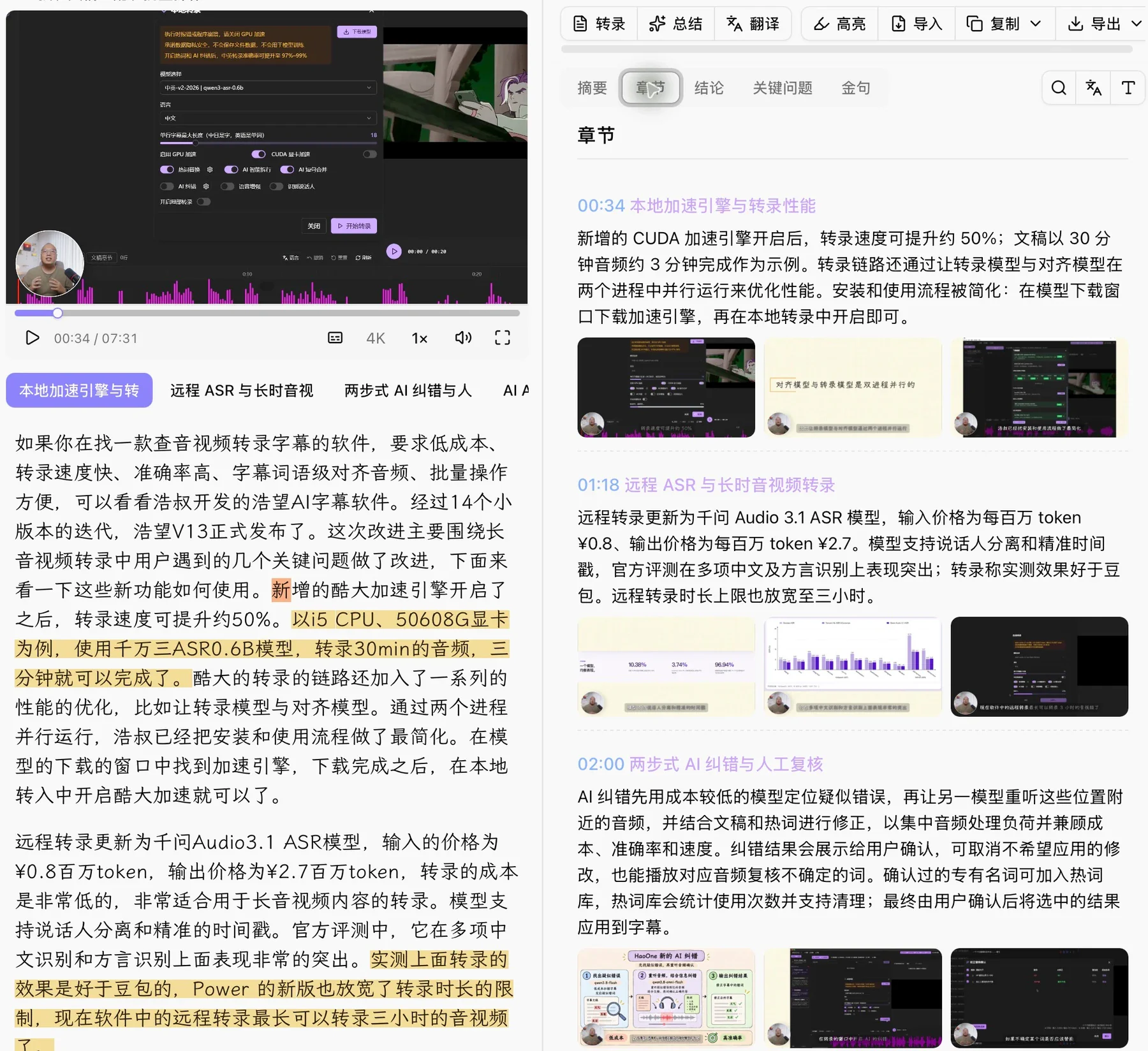
Verify the content
Use AI summaries to understand and locate material quickly, then verify names, numbers and conclusions against the original video. The demo discusses HaoOne. Its CUDA, manuscript matching and DaVinci subtitle animation features are not instructions for equivalent OctSum features.
To change the sections or scope, reopen Summary. Regeneration is a new AI request; review billing information before submission.