
Browser extension tutorial
Download the extension
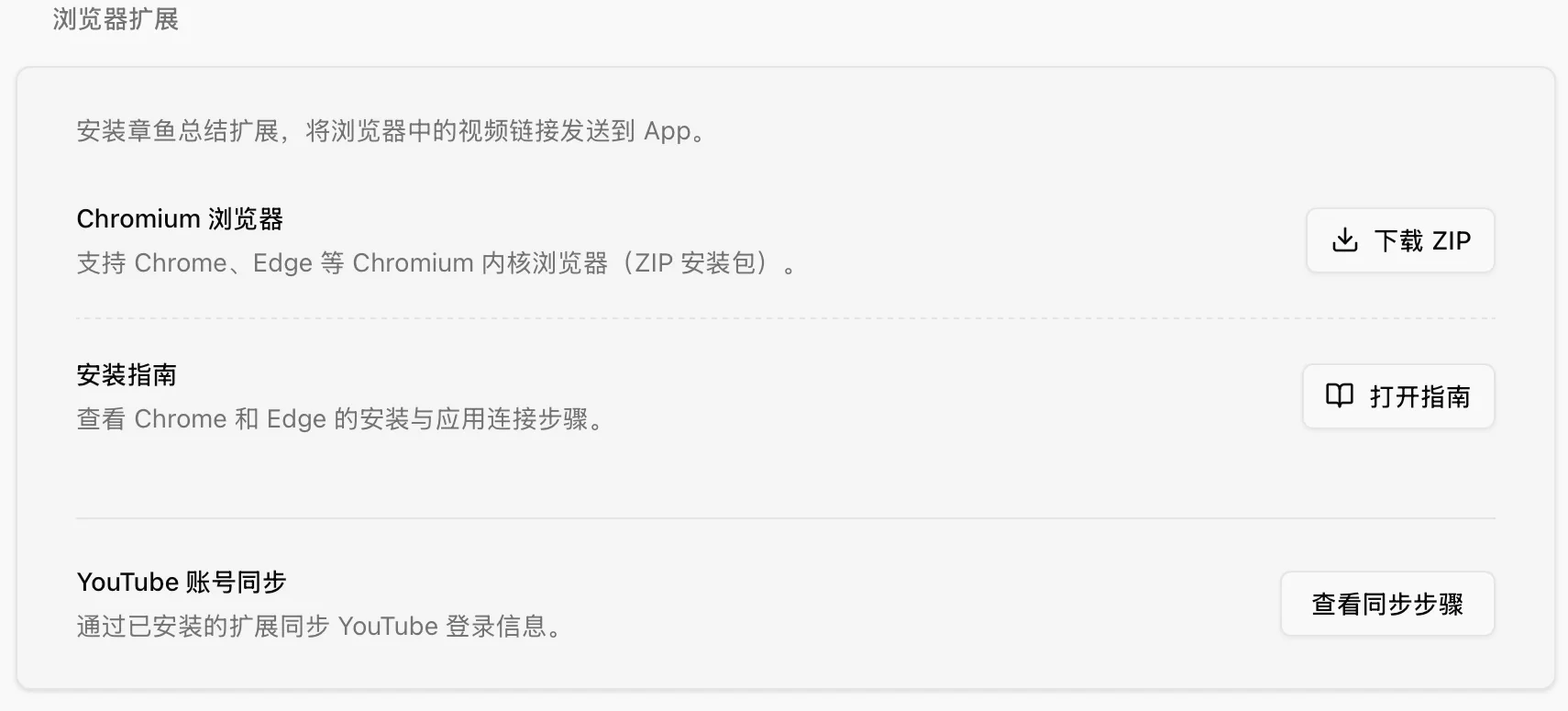
Open Settings → 浏览器扩展 (Browser extension) in OctSum, click 下载 ZIP (Download ZIP), save and extract it. The current package supports Chrome, Edge and other Chromium browsers.
Install and connect
- Enter
chrome://extensionsin Chrome oredge://extensionsin Edge. - Enable Developer mode and click Load unpacked.
- Select the extracted folder containing
manifest.json. Keep this folder after installation. - In OctSum, open Settings → Browser extension → 打开指南 (Open guide) and click 启用浏览器连接 (Enable browser connection).
- Open the extension from the browser toolbar and check its connection. If disconnected, open the desktop app and click 重新检测 (Check again).
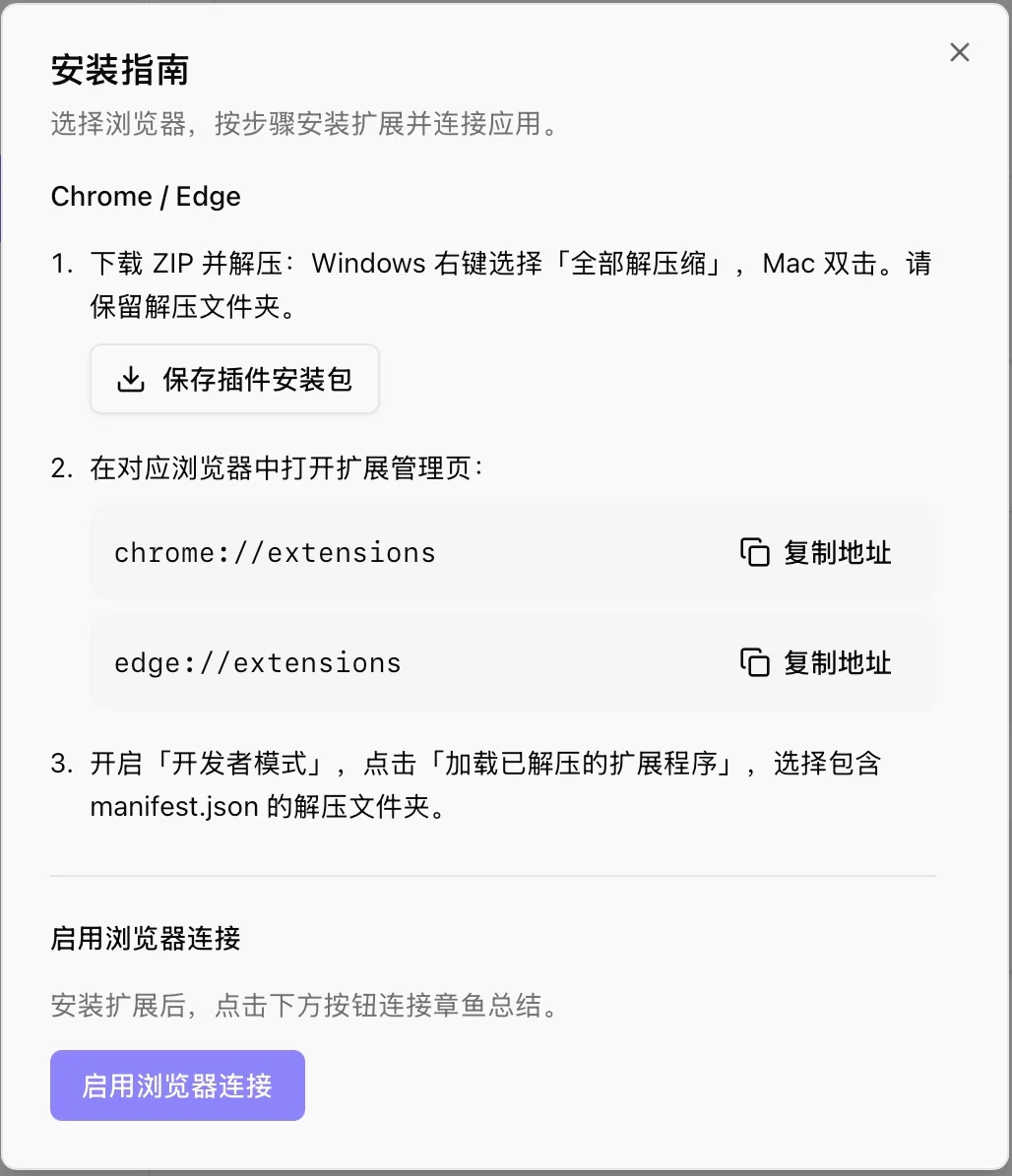
Loading the extension and enabling its app connection are separate steps. Installing the CLI alone does not enable the browser connection. With the CLI installed, octsum browser install also registers the connection component. Repeat connection setup if it breaks after moving the app, changing computers or updating the extension.
Send a video to OctSum
- Open the video or podcast page, then open the extension.
- Choose a workspace under 保存到 (Save to). If none is available, create one in the desktop app and check again.
- Choose 仅下载 (Download only), 下载并转录 (Download and transcribe) or 一键总结 (Summarize).
- Choose client defaults, local transcription or online transcription. Local mode requires installed models; online processing requires valid activation and the relevant service configuration.
- Authorize possible charges if the workflow includes online transcription, summaries or later marking steps, then submit.
- Track progress in the extension's recent task or the app's task queue. On completion, click 在客户端打开 (Open in client). Resolve a reported failure before retrying the original task.
Local transcription only determines the transcription method; AI summaries may still incur online charges. Bilibili and YouTube playback pages also support an OctSum page button. Configure the workspace, transcription mode and page-button authorization in the extension before using it.
Sync YouTube sign-in
- Sign in to YouTube in a normal browser window and open any video.
- Open the extension, click 连接 YouTube 到应用 (Connect YouTube to app) and allow the requested sign-in access.
- After syncing, select the same browser under Settings → Video download → 登录 Cookie (Login cookies) in the app.
- Retry the original download or refresh the YouTube list. Repeat synchronization when the session expires.
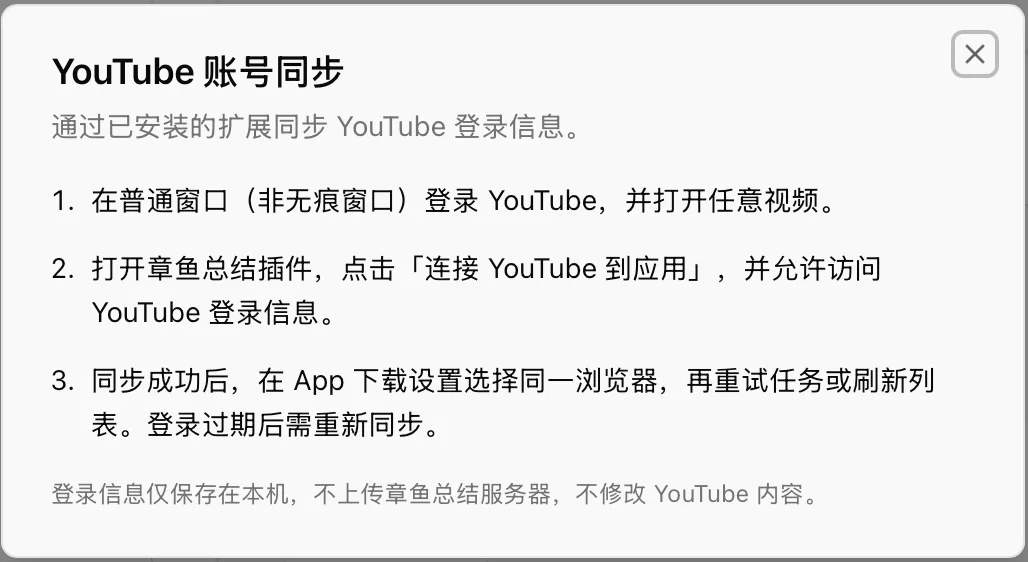
Synced sign-in information stays on your computer and is not uploaded to OctSum servers. If you export a Cookie file yourself, keep it private.
Troubleshooting
| Symptom | Action |
|---|---|
| Disconnected | Open the app, enable browser connection again, then check again in the extension |
| No workspace | Create or open a workspace in the app and check again |
| Page not recognized | Open the actual playback page and reopen the extension |
| Update required | Update both the app and extension; reload the unpacked extension in the browser manager |
| Sign-in failure | Sign in through app settings; for YouTube, sync again and select the matching browser |
| Submitted but unfinished | Inspect the existing task's progress and error before creating more tasks |
See the CLI quick start and command reference for terminal use.