 OctSum
Local Video Summarizer: Turn Media Files into Notes
If the content is already on your computer, start there. Bring a recorded lesson, demonstration or interview into your workspace and turn it into text, chapters and notes.
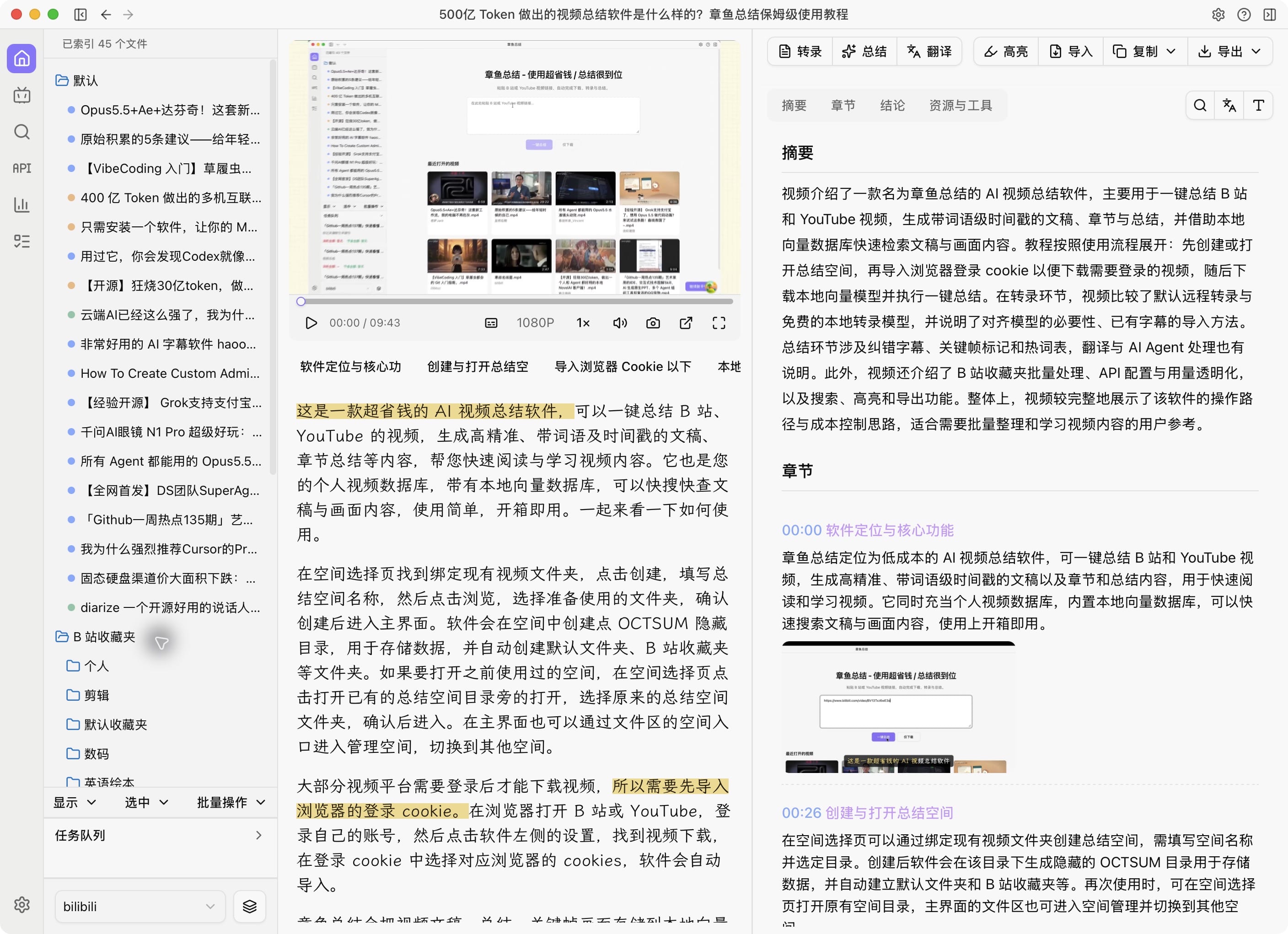
Real app view: reading the official OctSum tutorial with its transcript and summary.
Local input is different from local inference
A local video starts on your computer and need not be uploaded to a video platform. Selected processing services may still be online.
Check playback, audio and file location. Keep external storage connected during processing and later source review.
The desktop workflow
- Import and check the file: Add playable local audio or video to your workspace. Check that the speech is clear and the language is suitable before running transcription.
- Create a transcript on your computer: Prepare the local transcription model and process the speech. Verify names, numbers and key statements before using the transcript for a summary.
- Choose a service and review the summary: Check your AI model's configuration and data handling, then summarize and compare with the original file. Export verified notes as Markdown.
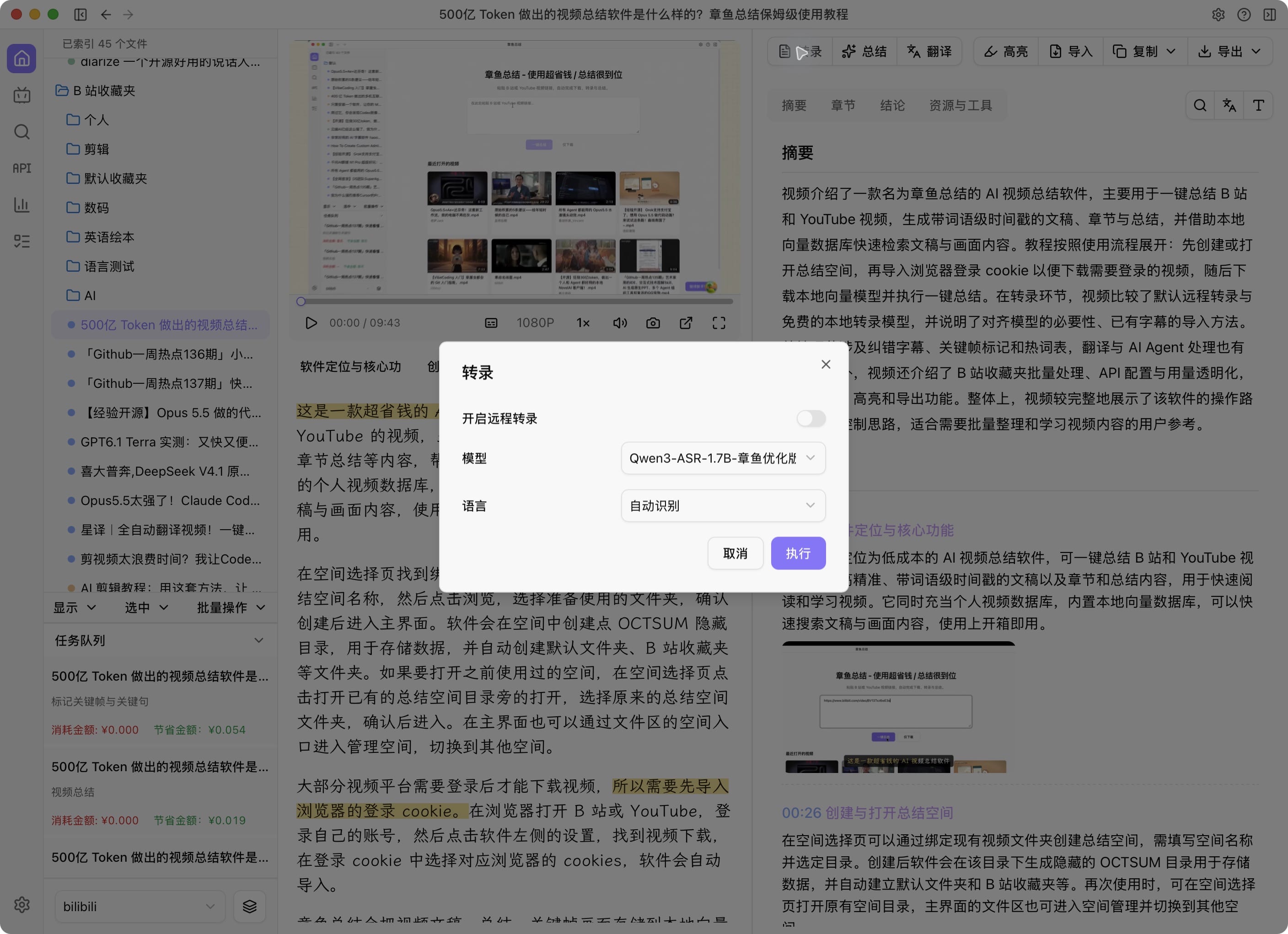
Real app view: local transcription model and source-language selection.
Validate the transcript first
Sample the beginning and middle for missing audio, poor volume or an incorrect language choice before summarizing.
Camera footage and screen recordings vary in encoding and audio quality. Diagnose file errors rather than assuming every extension works on every device.
Keep source and notes connected
Organize course or project files under meaningful names. Understand workspace references before moving or renaming media.
Exported notes are useful artifacts, but they are not complete backups of source media and workspace data.
Example note structure
This original example illustrates a possible structure; it is not the actual result shown in the screenshots.
First check that the exported file opens. Then inspect the beginning and end for missing content. After checking audio volume, confirm the filename and save location.
Scope: Check playback, completeness, audio volume and file information.
Order: Open the file, inspect both ends, listen to the audio, then check its name and location.
Verification: Review the actual file rather than relying only on a successful export notification.
Frequently asked questions
Does local video summarization mean fully offline?
No. Local speech transcription can run after its model is prepared. Whether AI summarization connects to a service, and what it sends, depends on the model configuration.
Can I use an audio-only file?
Yes. Import, transcribe and summarize the audio. Audio-only files have no video frames, so review the transcript and listen to the source.
Does every media format work?
Processing depends on the app's media reading and decoding support. If playback or audio extraction fails, check file integrity and format before transcription.
Start with one familiar source
Validate the workflow with a short recording before moving to longer material or a batch. Processing takes place in the Windows or macOS app; the website provides information and downloads. Software licensing is separate from AI usage. Local ASR does not consume official credits; online services, personal APIs and external agents may charge separately.
Start with one video
Create an account, download OctSum, then import, transcribe and summarize on your computer. AI service availability and costs depend on your chosen model and configuration.